- Voice-first interfaces are becoming the standard: By 2026, public kiosks are shifting from touch-only to “voice-first” designs, significantly reducing the barrier for those with limited dexterity or vision.
- Privacy is built-in: New privacy-masking technology allows users to interact with public kiosks via voice without sensitive information being overheard by bystanders.
- Standardized accessibility: Look for the “Universal Access” icon on kiosks, which ensures height-adjustability, high-contrast audio, and simplified navigation menus designed for aging users.
As we move into 2026, the landscape of public services—from transit ticketing and municipal permit applications to healthcare check-ins—is undergoing a significant digital transformation. For older adults, this shift is increasingly defined by the integration of voice-activated technology. This guide explores how these systems are evolving to prioritize independence, accessibility, and security, and how you can navigate them with confidence.
The Evolution of Kiosks: Why Voice Matters in 2026
For many years, public kiosks were designed primarily for younger, tech-savvy users, often relying on small touchscreens that were difficult to navigate. In 2026, the industry standard has shifted toward “Inclusive Voice Interaction.” This shift is not merely a convenience; it is a fundamental accessibility design choice.
What it is: Voice-activated kiosks now use Natural Language Processing (NLP) that understands conversational speech rather than requiring rigid, robotic commands. If you say, “I need to renew my parking permit,” the system understands the intent, whereas older models required you to navigate through five different sub-menus.
Why it matters: Physical barriers such as arthritis, tremors, or reduced tactile sensitivity can make touchscreens frustrating or impossible to use. Voice interaction removes the need for fine motor control, allowing you to complete tasks through clear, natural communication.

Security and Privacy: Addressing the “Public” Concern
A common concern for users is the fear of sharing personal information in a public space. If you are checking your pension status or healthcare appointment details, you do not want your information broadcast to the entire room. 2026 technology addresses this through several specific innovations:
- Directional Audio: Modern kiosks utilize speakers that project sound only toward the person standing directly in front of the screen.
- Private Headset Ports: Most units now include a standard 3.5mm jack or Bluetooth pairing capability, allowing you to listen to instructions through your own hearing aids or earbuds.
- Privacy Masking: Advanced software now includes a “whisper mode” that allows the kiosk to process low-volume voice input, ensuring your conversation remains localized.
What to do if you feel your privacy is compromised
If you are in a crowded area and a kiosk does not offer a headset option, you have the right to request an alternative. Most public service centers are mandated by the 2026 Digital Inclusion Acts (varying by region, such as the EU’s Accessibility Act or the US ADA amendments) to provide an alternative, such as a paper form or a private desk assistant, if the digital interface does not meet your personal privacy or accessibility requirements.
Practical Steps for Using Voice-Activated Kiosks
To maximize your success with these machines, follow this standardized approach. Think of it as a checklist for efficiency and comfort.
| Step | Action | Pro-Tip |
|---|---|---|
| 1. Preparation | Have your identification, such as a national ID or health card, ready before you approach the kiosk. | Keep these in an easily accessible pocket rather than a deep bag. |
| 2. Calibration | Look for the “Voice Assist” button or speak the wake-word (e.g., “Hello Kiosk”). | If the kiosk is in a noisy area, face the microphone directly. |
| 3. Interaction | Speak in clear, short sentences. | Pause for one second after the kiosk finishes its prompt to allow for processing. |
| 4. Verification | Review the summary screen before clicking “Confirm.” | If the kiosk offers a “Read Back” feature, use it to confirm details. |
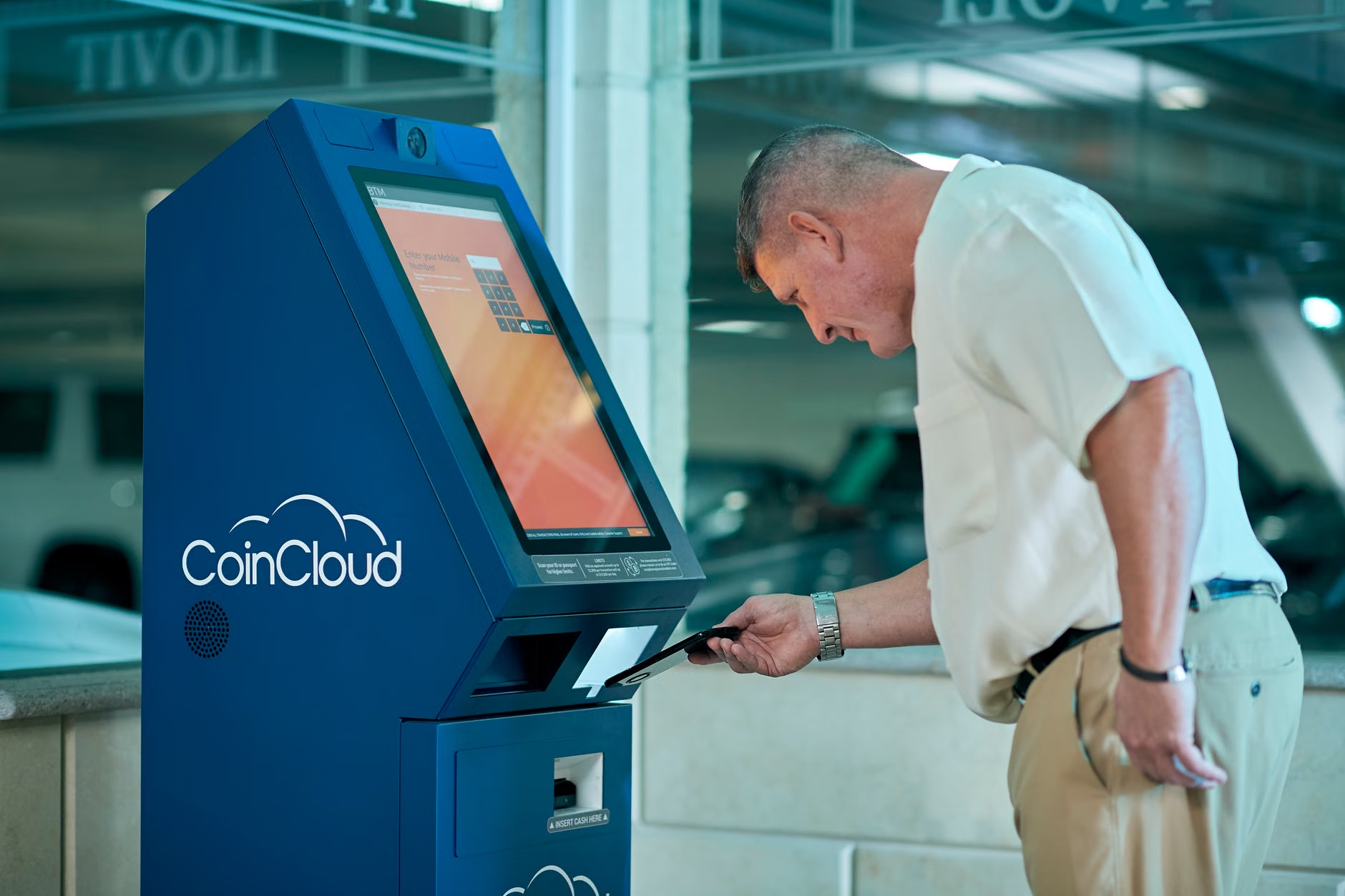
Common Pitfalls and How to Avoid Them
Even with advanced technology, errors occur. Understanding these common “tech-friction” points will save you time and stress.
The “Over-Talking” Mistake
A frequent error is continuing to speak while the kiosk is still processing. Because these systems use cloud computing, there is often a half-second delay. Action: If the kiosk does not respond immediately, wait for the visual “listening” indicator (usually a glowing ring or pulsing light) to turn on before speaking.
The “Complex Environment” Variable
Background noise is the enemy of speech recognition. If you are in a busy train station, the ambient noise can confuse the system. Action: Use your hand to cup the area around the microphone or lean slightly closer. If the kiosk still fails to understand you twice, look for the “Switch to Manual” button, which reverts the interface to a high-contrast, large-button touch mode.
Accessibility Features You Should Look For
Not all kiosks are created equal. In 2026, look for these three markers of an truly age-inclusive machine:
- Adjustable Height: Look for a button on the side labeled “Height Adjustment.” This allows the screen to lower to a level comfortable for a seated user or someone using a cane.
- High-Contrast Mode: If you have visual impairments, look for a “High Contrast” or “Accessibility” icon. This will shift the display to a yellow-on-black or white-on-black color scheme, which is significantly easier to read.
- Emergency/Help Button: Every public kiosk is required to have a physical or digital “Help” button that connects you to a live human operator via video call if the automated system fails.

The Future of Public Service Interaction
By 2026, we are seeing a shift from “learning the machine” to “the machine learning you.” Some advanced kiosks now offer personalized settings if you scan a government-issued digital ID. This means the kiosk can automatically set the text size, audio volume, and language settings based on your previous preferences, significantly reducing the setup time for every visit.
However, it is important to remember that these systems are tools, not replacements for human service. If you encounter a situation where the digital process feels unsafe, confusing, or inappropriate for your specific needs, never hesitate to ask for a staff member. Digital public services are designed to be an option, not a requirement that strips you of the right to human assistance.
Deep Dive: Ensuring Your Digital Identity is Ready
To make the most of these 2026 kiosks, ensure your digital identity is current. Many kiosks now require a “Digital Key”—a secure QR code or NFC (Near Field Communication) signal from your smartphone. If you are not comfortable using a smartphone for this, check if your local government issues physical smart cards. These cards are often more reliable than smartphone apps, as they do not depend on battery life or cellular connectivity.
Checklist for your next visit to a municipal office:
- Verify if your local municipality uses a specific “Digital ID” card.
- Check the official government website for a list of kiosk locations that offer “Assisted Service” hours.
- Prepare a small “cheat sheet” of your basic info (name, DOB, account number) in your wallet, just in case the voice recognition struggles with specific names or numbers.
Conclusion: Taking Control of Your Digital Experience
Navigating the digital shift in public services does not require you to become a computer expert. It requires knowing what features to look for and understanding your rights as a user. By prioritizing kiosks with accessibility features, using privacy-enhancing tools like personal headsets, and knowing when to ask for human help, you can utilize 2026’s public technology to maintain your independence and efficiency.
Your next step is simple: the next time you visit a public transit hub or municipal office, take a moment to observe the kiosks. Look for the accessibility icons mentioned in this guide. Familiarizing yourself with the interface when you don’t have a pressing task to complete is the best way to build confidence for when you do.
Frequently Asked Questions (FAQ)
1. Are these voice-activated kiosks recording my private conversations?
No. In compliance with data privacy regulations like the GDPR in Europe and similar laws globally, these systems are programmed to only listen for specific “wake-words” or commands. They do not store or transmit your voice data unless you are actively engaged in a service transaction, and even then, the data is encrypted and deleted immediately after the session ends.
2. What if I have a heavy accent or a speech impediment?
Modern 2026 systems are trained on diverse speech patterns to ensure inclusivity. However, if the system consistently fails to understand you, the “manual” touch mode is always available. You are not required to use the voice feature if it is not working for you.
3. Do I need to pay for these services?
Accessing the kiosk itself is free. However, if you are using the kiosk to pay for a service (like a parking permit or transit fare), you will need a digital payment method, such as a credit card or a digital wallet on your phone. Always check if the kiosk accepts physical cards, as some newer models are moving toward “contactless-only” payment.
For further information on digital accessibility standards, you can refer to the W3C Web Accessibility Initiative or your local government’s official portal for public service updates.