- Universal Design is Now Standard: 2026 regulations in many jurisdictions now mandate that public banking kiosks meet high-contrast, screen-reader compatible, and physical accessibility standards, making them easier to use than ever before.
- Security Shifts from Passwords to Biometrics: Moving away from complex passwords, newer kiosks utilize secure biometric verification (such as palm vein or facial recognition) which reduces the need to memorize PINs.
- Hybrid Support Remains Essential: Even with advanced automation, the “Human-in-the-Loop” model is the gold standard; if a kiosk process becomes confusing, look for the “Video Call” or “Remote Assistant” button to speak with a human teller instantly.
The Evolution of Banking Kiosks: What Has Changed by 2026?
By 2026, the global banking landscape has shifted significantly. We have moved past the era of “one-size-fits-all” automated teller machines (ATMs) and into the age of the Multifunctional Digital Banking Kiosk. These stations are no longer just for withdrawing cash; they are comprehensive service hubs designed to handle account management, document printing, identity verification, and even loan consultations.
For those aged 60 to 80, this transition represents a double-edged sword. On one hand, physical bank branches are becoming scarcer as institutions consolidate. On the other hand, the new generation of kiosks is being built with “Age-Inclusive Design” principles—a direct response to global advocacy for financial independence among older adults. In this guide, we will explore how these machines function, why they are more accessible than the tech of five years ago, and how you can navigate them with confidence.
Understanding Age-Inclusive Design Standards
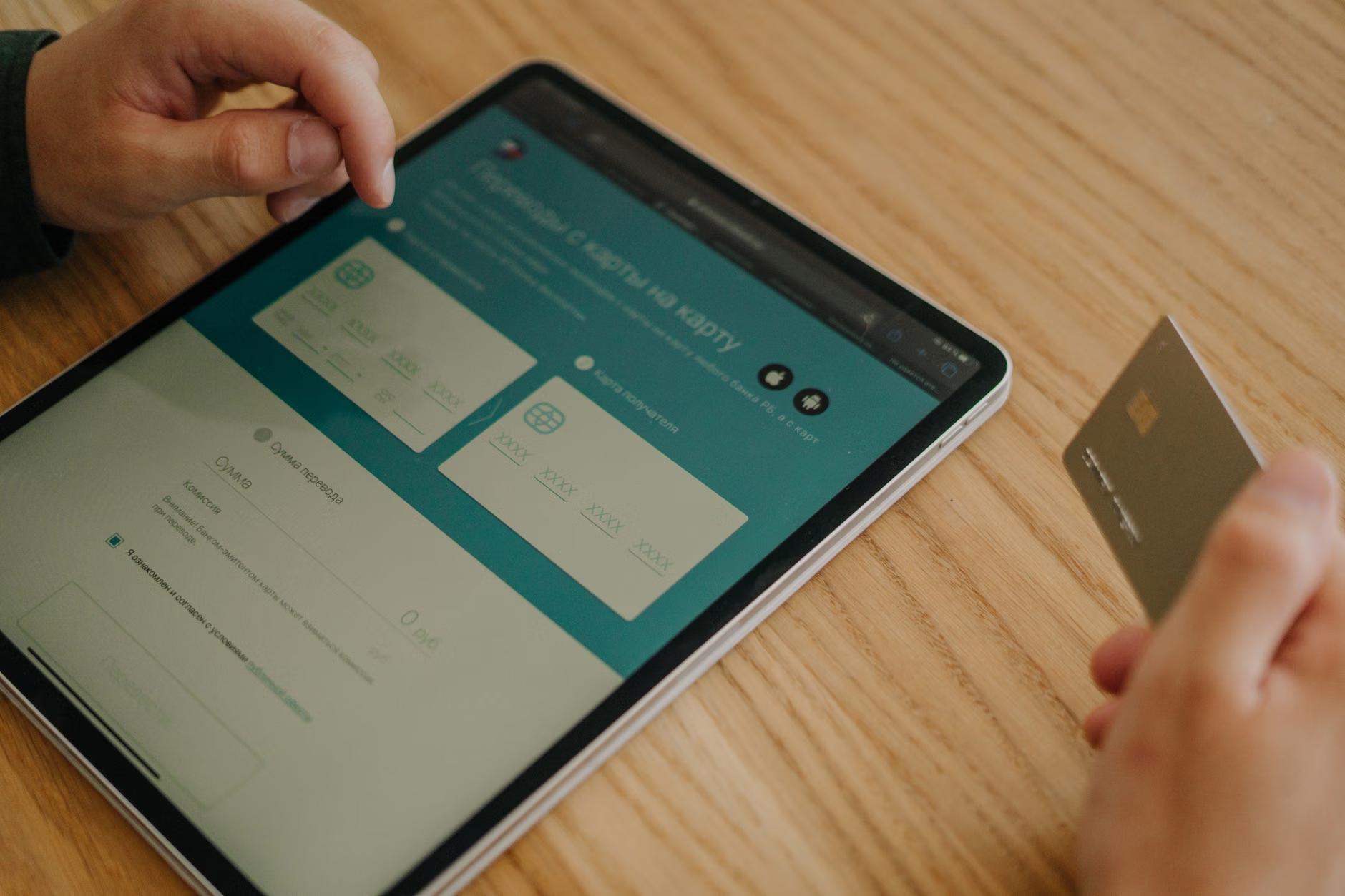
In 2026, the term “Age-Inclusive Design” is not just a marketing buzzword. In regions like the European Union (under the European Accessibility Act) and parts of North America and East Asia, financial institutions are required to meet specific hardware and software benchmarks. Understanding these will help you recognize when a machine is designed with your needs in mind.
Key Accessibility Features to Look For:
- Adjustable Height and Ergonomics: Look for kiosks that allow for wheelchair access or provide a seated interface. If you are standing, many 2026 models feature tilt-adjustable screens to reduce glare and accommodate different eye levels.
- High-Contrast and Scalable Interfaces: Modern kiosks allow you to toggle “High Contrast Mode” (usually yellow on black or white on black) and increase font sizes with a single tap.
- Audio-Assisted Navigation: If you have visual impairments, look for a standard 3.5mm headphone jack on the console. Plugging in your own headphones will trigger a private, audio-guided navigation system that talks you through the transaction.
- Physical Keypads with Tactile Feedback: Despite the rise of touchscreens, many jurisdictions have maintained physical keypads with raised dots on the number “5” to assist those with tactile preferences.
Common Mistake: Many users try to struggle with a machine that is set to a “Standard” display mode. Before starting your transaction, always look for the “Accessibility” or “Accessibility Settings” icon—usually represented by a person silhouette in a circle—located in the corner of the screen. This is your gateway to a more comfortable user experience.
The Shift Toward Biometric Authentication
One of the most significant pain points in digital banking has been the “Password Fatigue” caused by constantly changing PINs and security codes. By 2026, the industry has largely pivoted toward Biometric Authentication.
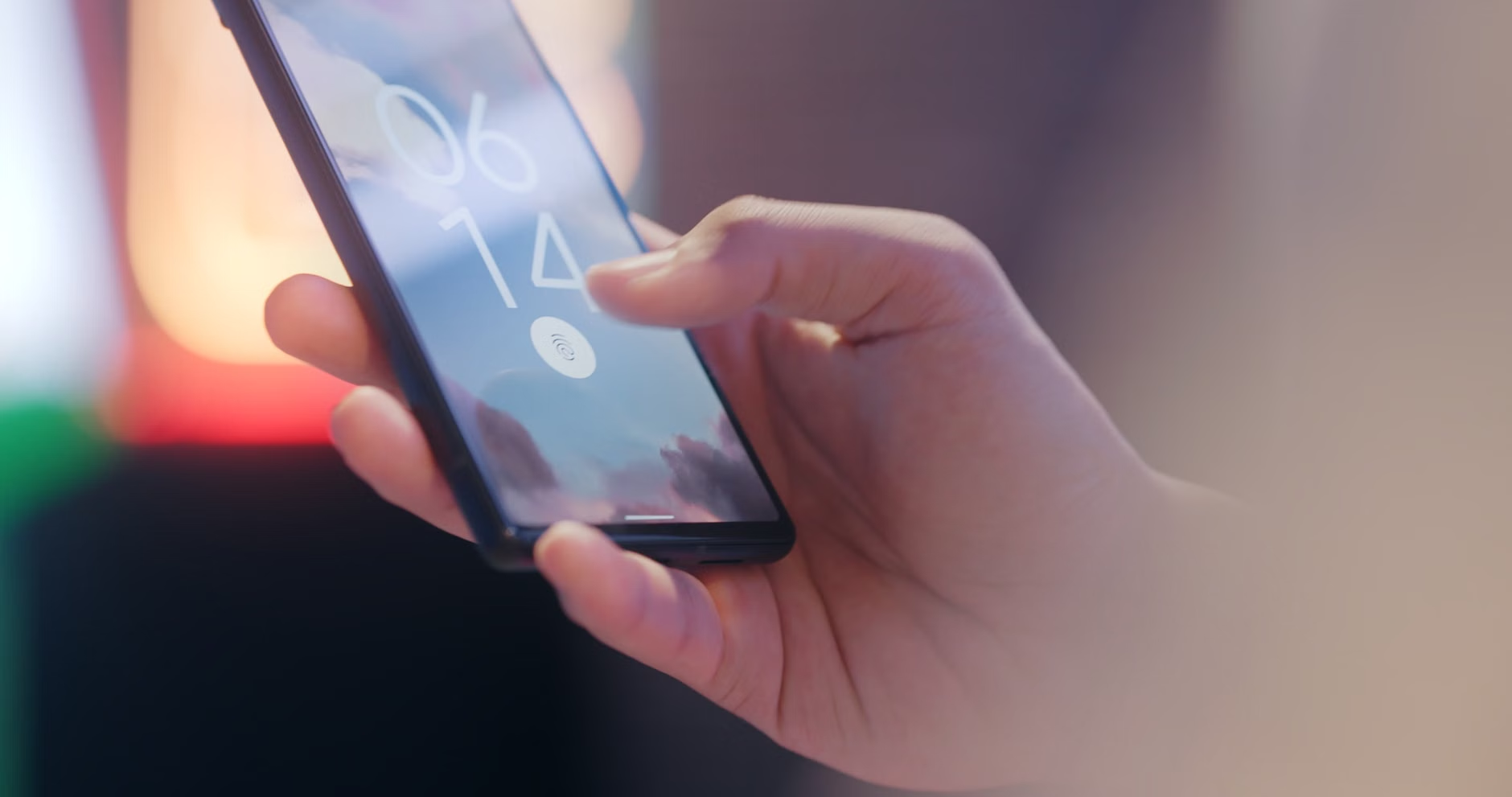
What this means for you: Instead of typing in a complex string of numbers that you might forget, you may be asked to place your palm over a scanner or look into a specialized camera. This technology maps unique patterns in your veins or facial structure to verify your identity. It is faster, more secure, and significantly reduces the risk of fraud.
How to Handle Biometric Kiosks:
- Initial Enrollment: You will likely need to visit a teller once to “register” your biometric signature to your account. This is a one-time process.
- Positioning: When using a palm scanner, keep your hand steady and centered. If the machine is facial-recognition based, remove hats or heavy scarves, and keep your face within the digital frame displayed on the screen.
- Privacy Considerations: These machines are designed with privacy filters. Even if someone is standing behind you, they will not be able to see the data being processed. However, always maintain a respectful distance from others using the kiosk.
If you have concerns about the storage of your biometric data, please note that in most regulated markets, the actual image of your face or palm is not stored. Instead, the system creates a mathematical hash—a unique numerical code representing your features—which cannot be reverse-engineered into an image. This is a crucial security layer mandated by 2026 data protection laws.
Comparison: Traditional Teller vs. Digital Kiosk
It is important to know when to use a kiosk and when to wait for a human teller. The following table helps you decide based on the nature of your request.
| Task Type | Digital Kiosk (2026 Model) | Human Teller |
|---|---|---|
| Cash Withdrawal/Deposit | Fast, efficient, 24/7 availability. | Slower, limited to branch hours. |
| Account Inquiry/Balance | Instant, private. | Requires queuing. |
| Complex Disputes/Fraud | Not recommended; use for reporting only. | Highly recommended. |
| Power of Attorney/Legal Docs | Not possible. | Required. |
The takeaway here is clear: Use the kiosk for routine, repetitive tasks to save your time and energy. Save the human teller for complex, sensitive, or high-stakes financial decisions. If you are ever unsure about a transaction—especially one involving large sums—always step away from the kiosk and speak to a bank employee. There is no shame in choosing the human route when you feel uneasy.
Practical Steps for a Successful Kiosk Visit
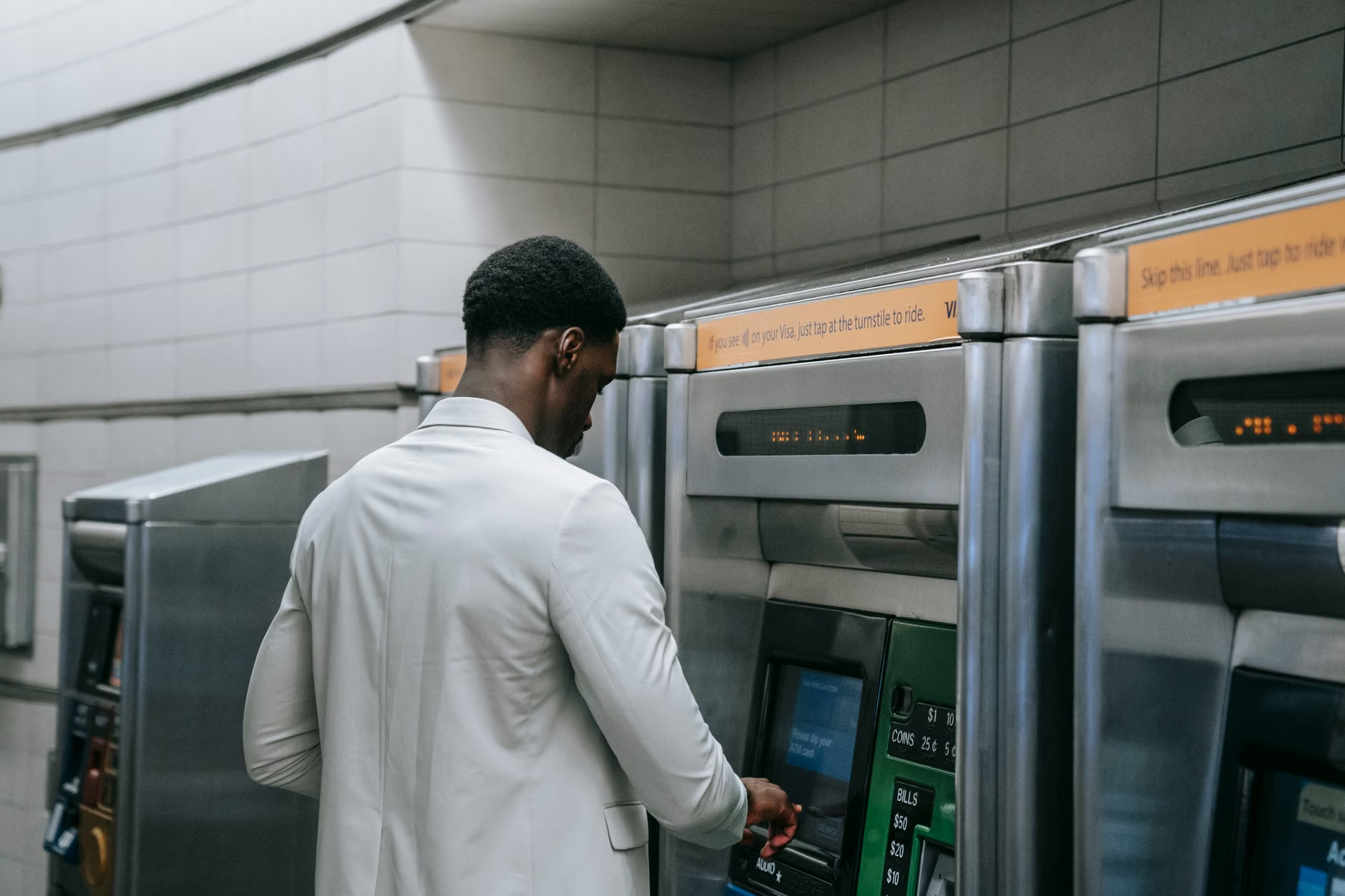
Preparation is the key to maintaining independence in the digital age. By following a structured approach, you can turn a potentially stressful errand into a quick, successful task.
The “Pre-Flight” Checklist for Banking:
- Bring Your ID: Even if the machine uses biometrics, always carry your government-issued ID. Some kiosks require a quick scan of your ID card to unlock high-limit transactions.
- Check Your Glasses: If you use reading glasses, keep them in an easily accessible pocket. The touchscreens are high-resolution, but the fine print on legal disclosures can still be small.
- Prepare Your Documentation: If you are depositing checks, sign them beforehand. If you are paying bills, have the account numbers written down on a physical piece of paper. Do not rely on your memory or your phone’s notes app if you are prone to technical glitches.
- The “Video Assistant” Button: Almost every modern kiosk has a button labeled “Help” or “Video Call.” If you get stuck, press it immediately. You will be connected to a trained customer service agent who can see the screen remotely and guide you through the process step-by-step.
Insight: The Hidden Inconvenience of “Time-Outs.” Many kiosks are programmed with aggressive time-out settings for security. If you are inactive for more than 60 seconds, the session may terminate. If you feel rushed, do not hesitate to press the “Extend Time” button if available, or simply restart the process. It is better to restart than to make a mistake in a hurry.
As digital banking interfaces become more intuitive, they also become more attractive targets for scammers. It is a common misconception that “the machine will protect me from everything.” In reality, the machine is a tool, and you are the pilot.
Rules for Staying Safe:
- No “Shoulder Surfing”: If you feel someone is standing too close behind you while you are at the kiosk, simply stop the transaction and wait for them to move on. Most modern kiosks have privacy screens that narrow the viewing angle, but your physical surroundings are just as important.
- Never Accept Help from Strangers: If a person—even one who looks like a bank employee but isn’t wearing a uniform or a clear ID badge—offers to “help” you with your transaction, decline politely and firmly. Only accept assistance from staff who have identified themselves or through the built-in video help system.
- Check the Card Reader: Before inserting your card, give the card slot a quick, gentle wiggle. If it feels loose or looks like it has been glued on, do not use it. Report it to the bank staff immediately.
By 2026, most banks provide a “Lock/Unlock” feature in their mobile apps. If you are nervous about using your card at a physical kiosk, you can use your phone to “unlock” the card just before you use it, and “lock” it again immediately after the transaction is complete. This is a powerful, underutilized security feature for adults who want to maintain their financial autonomy without the risk of card skimming.
The Future of Financial Inclusion
The movement toward age-inclusive digital banking is part of a broader global effort to ensure that as society goes digital, no one is left behind. Organizations such as the Global Alliance for Financial Inclusion have been working with governments to set standards that force banks to prioritize the “User Journey” for older adults. This means that in the coming years, we can expect even more seamless integration, such as voice-activated banking and AI assistants that can explain complex financial terms in plain, simple language.
However, the most effective tool for financial inclusion is your own willingness to engage with these systems at your own pace. Start by visiting your local branch when it is quiet—usually mid-morning on a Tuesday or Wednesday—and ask a teller to walk you through the kiosk process. Most branches are more than happy to do this because it reduces their workload in the long run and helps you become more self-sufficient.
Remember: You do not need to be a “tech expert” to use these systems. They are designed to be intuitive, and if they aren’t, the fault lies with the design, not with your ability to learn. Use the resources available to you, stay patient with yourself, and prioritize your privacy above all else.
Frequently Asked Questions
1. What should I do if the kiosk eats my card?
Do not leave the machine. If the bank is open, alert a staff member immediately. If the bank is closed, use the emergency phone usually located on the side of the kiosk or call the customer service number printed on the machine. Keep a record of the time and the kiosk’s location ID (usually found on a sticker on the frame of the machine).
2. Are these kiosks safe from hackers?
Banking kiosks use end-to-end encryption, which is the same security standard used for online banking. While no system is 100% immune to risk, these kiosks are monitored 24/7 by security teams. The biggest risk is usually physical (like someone watching your PIN), so keeping your information private is your best defense.
3. Can I use these kiosks if I have arthritis or mobility issues?
Yes. In 2026, many kiosks are designed with “Accessibility Mode” specifically for this. This mode often includes larger touch targets, voice commands, and, in some cases, the ability to connect to a mobile app on your phone that acts as a remote control, so you don’t have to reach for the screen at all.
For further information on digital accessibility standards, you may refer to the Web Accessibility Initiative (WAI) guidelines, which serve as the foundation for many global banking kiosk standards. Always check with your local bank’s specific service terms for the most up-to-date information on their kiosk capabilities.