Key Takeaways:
- Universal Design Mandates: By 2026, major international library networks are adopting standardized ISO-compliant accessibility features for all public kiosks, including adjustable heights and haptic feedback.
- Interface Simplification: New software updates prioritize “Senior-First” UI/UX, featuring high-contrast modes, voice-command navigation, and simplified menu trees that reduce cognitive load.
- Support & Advocacy: You have the right to request assistance; most jurisdictions now require libraries to provide on-site staff training to help users navigate these digital tools effectively.
Public libraries are the cornerstone of community access to information, yet the rapid shift toward digital-first service kiosks has often left older adults feeling excluded. As we move into 2026, a wave of international standards—driven by aging populations and inclusive design advocacy—is transforming how these machines function. This update is not merely about “tech for tech’s sake”; it is about ensuring that your right to borrow, research, and engage with community resources is not hindered by poor design.
The Evolution of Library Kiosk Design: What Changed in 2026?
For years, kiosks were designed with a “one-size-fits-all” approach that rarely fit anyone over the age of 60. The 2026 standards shift the focus from aesthetic minimalism to functional ergonomics. If you have previously found kiosks too tall, screens too bright, or touch interfaces unresponsive, you are not alone—and the industry has finally caught up.
The primary change is the adoption of the ISO/IEC 24751 guidelines, which emphasize individual accessibility. In practice, this means that the kiosk you encounter in 2026 is no longer a static piece of hardware. It is an adaptive tool. Whether you are using a walking frame, a wheelchair, or simply prefer to sit while you browse, the hardware is now required to accommodate your physical reality.
Physical Accessibility Features
The most visible change is the physical architecture of the kiosk. Under new international building codes for public facilities, kiosks must now provide:
- Adjustable Height Mechanisms: Screens that can move vertically within a range of 70cm to 120cm from the floor.
- Clear Floor Space: A minimum of 900mm x 1500mm of unobstructed space in front of the terminal to allow for mobility aids.
- Tactile Interfaces: Physical buttons or raised markers for essential functions like “Home,” “Help,” and “Emergency,” ensuring that you don’t have to rely solely on a smooth, unresponsive touch screen.
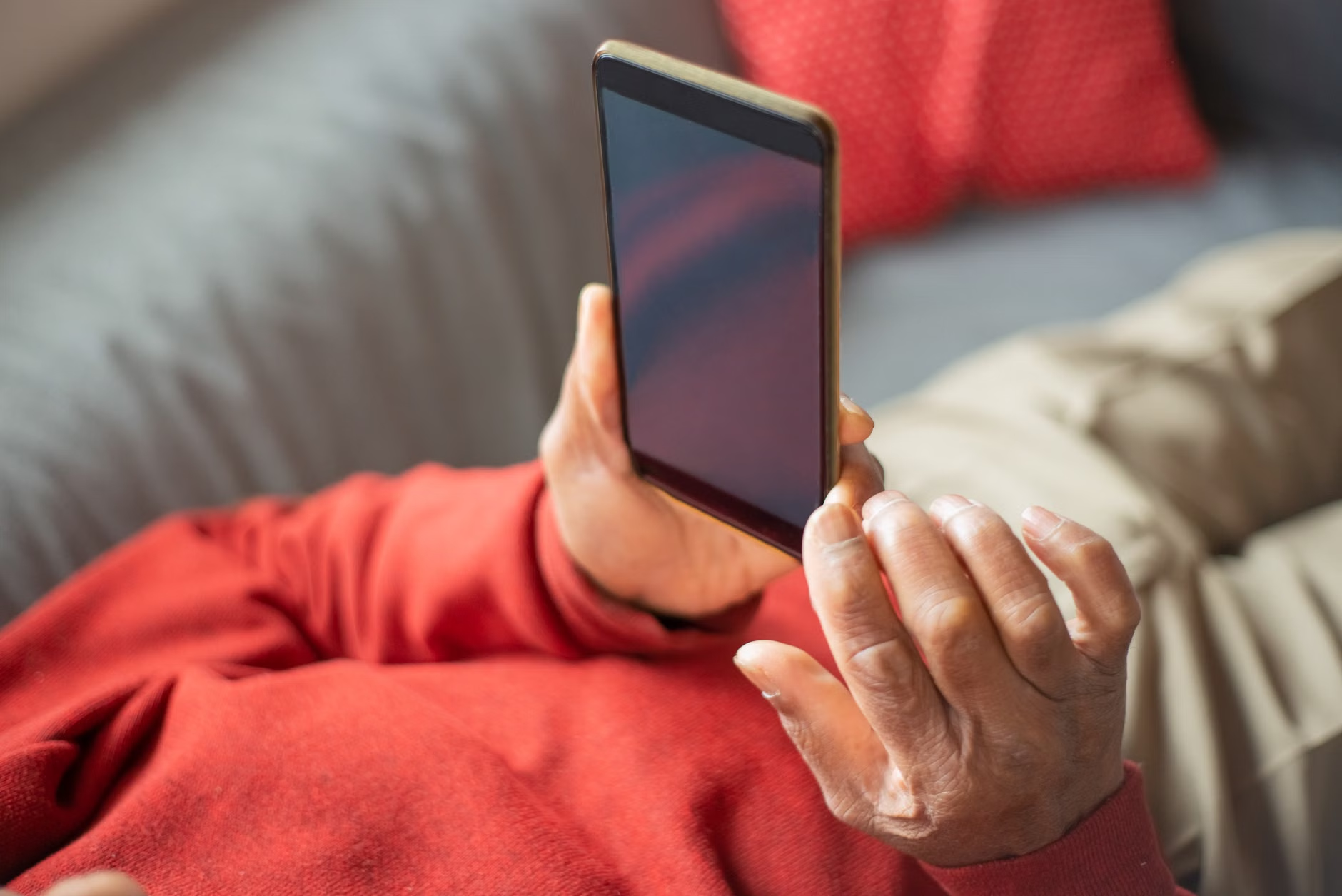
Software and Interface: Reducing Cognitive Load
It isn’t just the height of the machine that matters; it is how the information is presented. The 2026 software updates for library kiosks are designed to reduce “cognitive friction.” If you have ever felt overwhelmed by endless menus or tiny text, the new interface standards are specifically designed to address these pain points.
The “High-Contrast & Large-Print” Default
Software developers are now required to include an “Accessibility Mode” that is accessible from the very first screen. You no longer need to navigate through complex settings to find it. Look for the universal accessibility icon (typically a stylized figure in a circle) prominently displayed in the corner of the screen. Activating this will trigger:
- Increased Font Size: A minimum of 24pt for all primary information.
- Color Contrast Ratio: A shift to high-contrast palettes (usually black background with yellow or white text) to assist with vision impairments.
- Simplified Navigation: A reduction of the “click-depth.” You should be able to perform standard tasks like checking out a book or renewing a loan in three clicks or fewer.
Voice Guidance and Audio Integration
For those who prefer auditory feedback, 2026 systems now include integrated “Text-to-Speech” (TTS) capabilities. If you plug in a standard 3.5mm headphone jack, the kiosk will read the screen options aloud. This is a significant step forward for users who find reading small text on a screen physically fatiguing.
| Feature | Old Standard (Pre-2026) | New Standard (2026) |
|---|---|---|
| Screen Height | Fixed, usually too high | Motorized/Adjustable |
| Navigation | Complex, multi-layered menus | Simplified, linear workflows |
| Feedback | Visual only | Haptic, Audio, and Visual |
| Help Access | Hidden or non-existent | Physical “Help” button available |
Note: This table highlights general industry trends. Depending on your local library’s budget and procurement cycle, not every branch will have the newest hardware immediately. However, software updates are being rolled out globally as a priority.
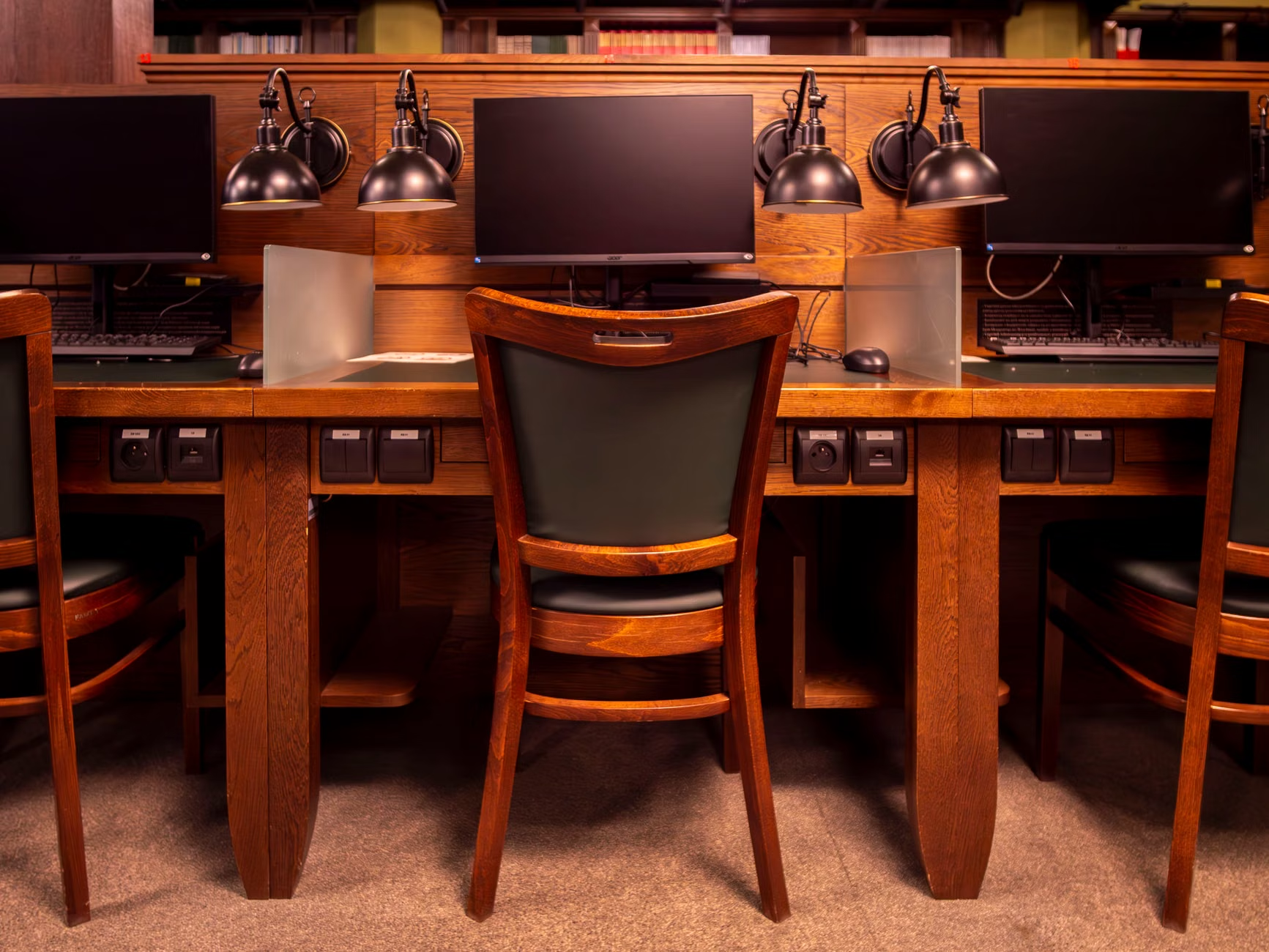
How to Advocate for Your Needs at the Library
Knowing the standards is only half the battle. If you find yourself at a kiosk that does not meet your needs, it is important to understand that you are not being “difficult”—you are requesting a service that should be provided as a matter of public right.
Step-by-Step Action Plan
- Identify the Barrier: Is the screen too high? Is the text too small? Is the touch response too fast for your motor control? Identifying the specific issue helps staff provide the correct solution.
- Ask for “Assisted Mode”: Many libraries now have staff trained to override kiosk settings or provide a handheld tablet version of the kiosk interface for users who cannot stand at a terminal.
- Request a Manual Alternative: If the digital kiosk is truly inaccessible for you, the library is generally required to offer an alternative, such as a paper-based transaction or direct staff assistance at the front desk.
- Provide Feedback: Library administrations rely on user feedback to prioritize their next maintenance budget. If a specific kiosk is consistently problematic, mention it to the head librarian. Use terms like “accessibility barrier” or “non-compliant with current standards”—these are terms that trigger administrative review.
A note on “Digital Confidence”: It is common to feel frustrated when technology changes. If you find the new interfaces confusing, remember that these systems are designed to be intuitive. If you feel like you are struggling, it is often a sign of poor design, not a lack of personal ability. Do not hesitate to ask for a “guided walkthrough” from a library staff member.
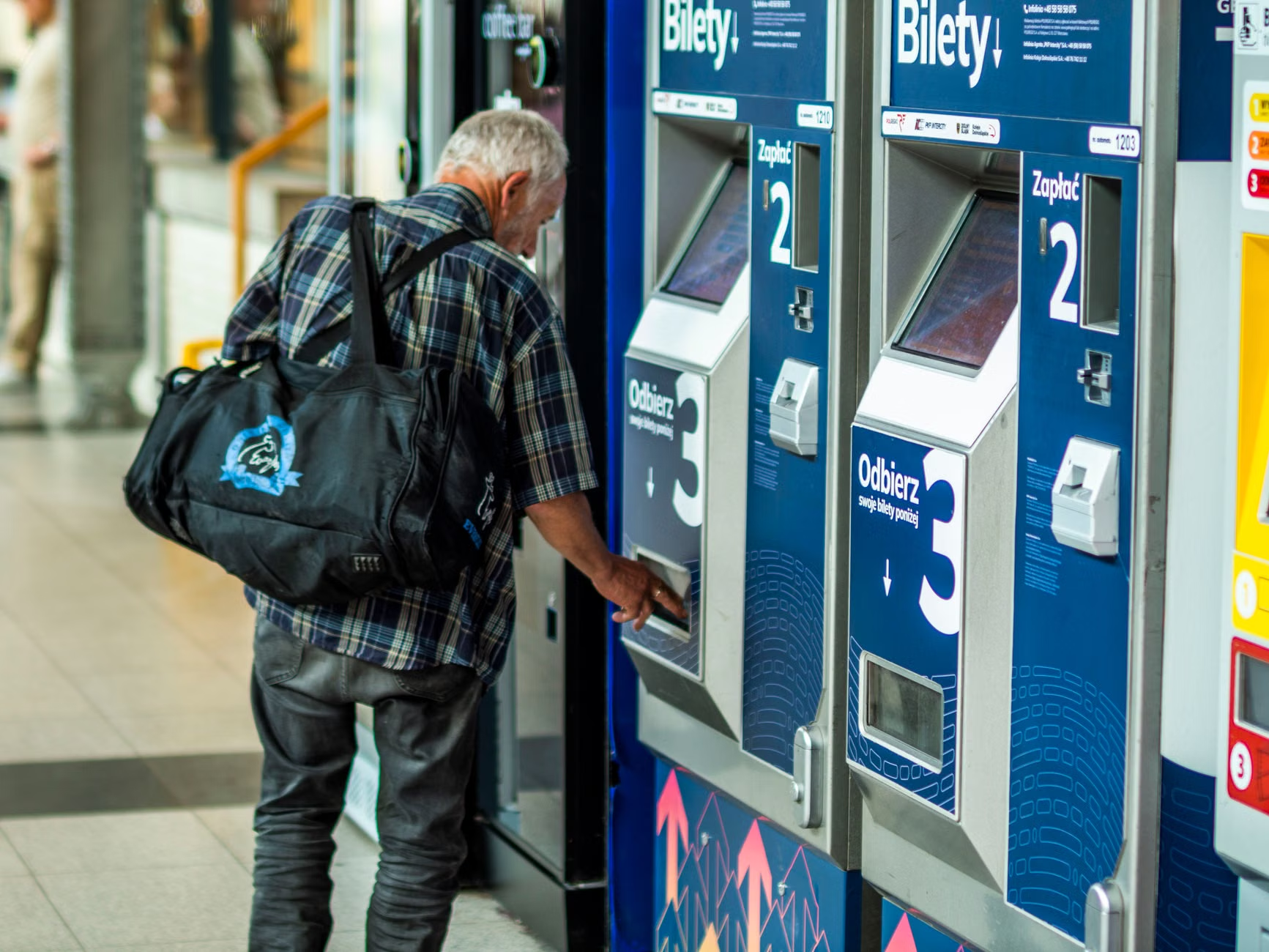
Hidden Nuances of Modern Public Kiosks
One aspect often overlooked is the hygiene and safety of interaction. In 2026, many kiosks are moving toward “touchless” or “contact-assisted” technology. This includes proximity sensors that detect your presence and automatically adjust the screen brightness or font size without you needing to touch the screen at all.
Furthermore, consider the time-out duration. Older kiosks would often log you out after 30 seconds of inactivity, which is stressful for those who need more time to process information. The new 2026 guidelines suggest a minimum of 120 seconds of inactivity before a session expires. If you find yourself being logged out too quickly, you are well within your rights to ask the library staff to extend the “session timeout” on their terminal settings.
Maintaining Your Digital Independence
Technology should serve you, not the other way around. As these kiosks roll out, view them as an extension of the library’s traditional service—the desk clerk is still there, the books are still on the shelves, and the digital kiosk is simply a tool to help you reach those resources faster.
If you have a caregiver or family member who helps you with these tasks, encourage them to look for the “Help” icon on the kiosk screen. These icons are now standardized across many regions to include a “Call Staff” function that alerts a librarian to come to your specific kiosk station. This eliminates the need for you to walk back and forth between the kiosk and the front desk.
Preparing for Your Visit
To ensure a smooth experience, consider carrying a small “tech kit” in your bag:
- Headphones: For using audio-guided features.
- A Stylus: If you have limited dexterity in your fingers, a rubber-tipped stylus can be much more precise than a fingertip on a touch screen.
- Your Library Card (Physical or Digital): Keep it in an easy-to-reach pocket.
By 2026, the goal of public library infrastructure is to make technology invisible—to make the process of finding and borrowing materials so seamless that the machine itself becomes a background element, leaving you to focus on the joy of reading and community engagement.
Conclusion
The 2026 updates to library kiosks represent a significant shift toward genuine inclusivity. By prioritizing adjustable hardware, simplified software, and staff-led support, public libraries are working to ensure that digital services remain open to everyone, regardless of age or physical ability. Remember that these features are your right to use. If a kiosk is not working for you, speak up, request assistance, and help your local library refine its services for everyone in the community.
Frequently Asked Questions (FAQ)
1. What should I do if the library kiosk is too tall for me to reach?
Look for a “Height Adjustment” button on the side of the kiosk frame or on the touch screen interface. If it is not adjustable or the button is unreachable, please ask a staff member to assist you. They are trained to either adjust the height for you or move your transaction to a standard desk terminal.
2. Are these new 2026 accessibility standards universal?
While many countries (including members of the EU, the US, and parts of the Commonwealth) have adopted these standards as part of their national disability and public service laws, implementation speed varies by municipality. If your local library has not yet updated their kiosks, cite your need for “accessible public services” to the library administration to encourage faster upgrades.
3. Is there a way to make the text larger on the screen?
Yes, all new 2026-compliant kiosks are required to have an “Accessibility” or “Settings” icon—usually represented by a gear or a person icon—on the main screen. Selecting this will allow you to toggle “Large Print” or “High Contrast” modes instantly. If you cannot find this button, ask a staff member to show you where the accessibility settings are located.
For further information on digital accessibility standards, you can refer to the Web Accessibility Initiative (WAI) guidelines provided by the World Wide Web Consortium, which serve as the foundation for these global kiosk improvements.