- Digital watercolor painting offers a low-mess, high-reward creative outlet that enhances fine motor skills and cognitive flexibility without the physical strain of traditional supplies.
- Success in digital art depends on choosing the right hardware and software interface; prioritizing “beginner-friendly” apps with intuitive touch controls is essential for a smooth transition.
- The cognitive benefits—such as sustained attention, spatial reasoning, and memory recall—are maximized when you treat the learning process as a series of small, iterative experiments rather than a pursuit of perfection.
Introduction: The Intersection of Technology and Artistic Expression
For many adults, the concept of “painting” conjures images of messy palettes, drying times, and the need for dedicated studio space. However, the rise of digital art tools has fundamentally shifted this landscape. Digital watercolor painting allows you to capture the ethereal, flowing beauty of traditional pigments with the added benefits of infinite “undo” buttons, zero cleanup, and the ability to work from anywhere. More importantly, this hobby serves as a powerful cognitive exercise. Engaging in creative tasks during your later years is linked to improved neuroplasticity—the brain’s ability to reorganize itself by forming new neural connections.
This guide is designed to help you navigate the transition into digital watercolor painting. We will explore the cognitive advantages, the selection of appropriate technology, and the practical steps to mastering your first digital canvas. Whether you are looking to reconnect with a past artistic interest or embarking on a completely new creative journey, digital watercolor provides a gentle, forgiving, and deeply rewarding environment to sharpen your mind.
The Cognitive Mechanics of Digital Painting
Learning a new digital skill in your 60s, 70s, or beyond is more than just a way to pass the time; it is a rigorous workout for the brain. When you learn to paint digitally, you are engaging several high-level cognitive functions simultaneously. First, you are practicing spatial reasoning. You must navigate a two-dimensional screen to create the illusion of depth, color blending, and perspective. This forces the brain to process visual information in a way that differs from standard reading or television viewing.
Second, the process enhances fine motor control. While the stylus feels like a pen, the precision required to control “pressure sensitivity”—the digital equivalent of pressing harder on a real brush to get more pigment—requires a refined connection between your eyes and your hands. This physical-digital feedback loop stimulates the motor cortex.
Finally, there is the aspect of executive function. Digital painting requires planning. You must choose your color palette, layer your work (background vs. foreground), and troubleshoot when a “wash” of color doesn’t look quite right. Each choice involves a decision-making process that keeps the frontal lobe active. Unlike traditional painting, where a mistake might be permanent, digital painting allows for “safe failure.” This encourages experimentation, reducing the anxiety of “doing it wrong” and allowing you to focus on the joy of discovery.
Selecting Your Digital Studio: Hardware and Software
The barrier to entry for digital painting is lower than ever, but the sheer volume of options can be overwhelming. To begin, you need two things: a tablet and an application (app).
Hardware Considerations: The Tablet
You do not need an industrial-grade computer to start. A mid-range tablet with an active stylus is more than sufficient. When selecting a device, consider the following:
- Screen Size: Aim for at least 10 inches. A smaller screen can lead to eye strain and makes it difficult to see the finer details of your brushwork.
- Stylus Compatibility: Ensure the tablet supports a “pressure-sensitive” stylus. This is non-negotiable for watercolor, as the “flow” and “transparency” of the paint depend on your hand’s pressure.
- Weight and Comfort: If you plan to paint while sitting in a comfortable chair, ensure the device is light enough to hold or use on a lap desk for extended periods.
Software Interface: Choosing Your App
For beginners, look for interfaces that prioritize a “clean” workspace. You want to see your canvas, not a clutter of complex menus. Below is a comparison of common options:
| Software Name | Best For | Learning Curve |
|---|---|---|
| Procreate (iPad) | High-end, intuitive, massive community support. | Moderate |
| ArtRage | Realistic paint simulation (looks like real water). | Low/Easy |
| Tayasui Sketches | Minimalist, very easy for absolute beginners. | Very Low |
Insight: Many beginners make the mistake of buying the most “professional” software available. These programs are often designed for graphic designers and include hundreds of unnecessary features that clutter the screen. For a hobbyist, ArtRage is often the best choice because it behaves most like real water and paper, which makes the learning transition intuitive.
Step-by-Step: Your First Digital Watercolor Session
Once you have your equipment, do not try to paint a masterpiece on your first day. The key to cognitive benefit is consistent, incremental progress. Follow this structure for your first week:
Phase 1: The “Color Exploration” (Day 1-3)
Forget about drawing shapes. Spend your first few sessions simply testing how the digital “water” interacts with the digital “paper.” Select a brush, pick a blue, and see what happens when you overlap strokes. Notice how the colors blend at the edges. This is your “sensory calibration” phase.
Phase 2: The “Simple Study” (Day 4-7)
Pick one simple object—an apple, a leaf, or a coffee mug. Use a single layer to paint it. Focus on where the light hits the object. In digital painting, you can use an “eraser” to sharpen your edges. This is a great way to practice precision without the stress of ruining your work.
Phase 3: The “Layering Experiment” (Week 2)
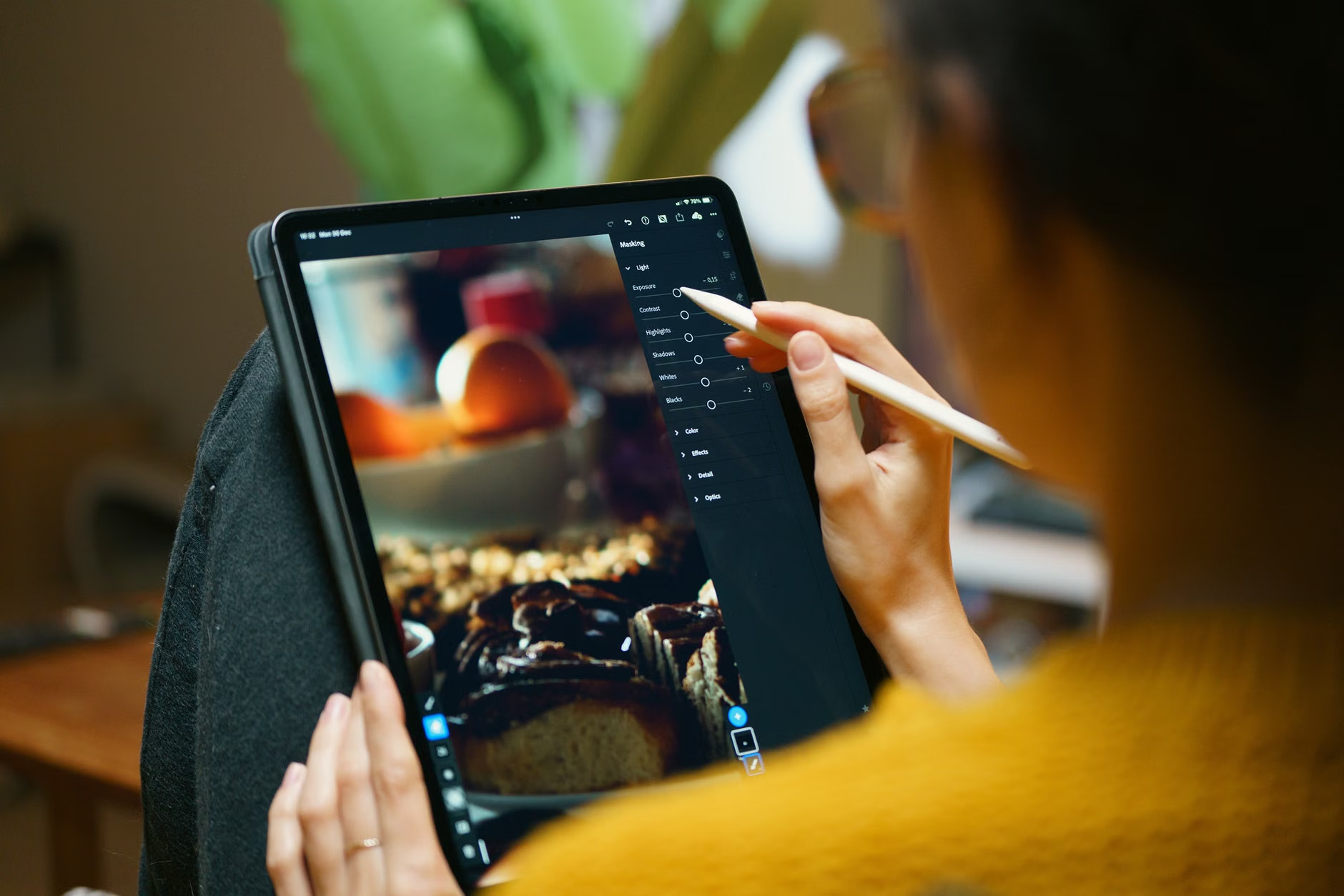
Digital art’s greatest strength is the use of layers. Think of them as sheets of glass stacked on top of one another. Paint your background on the bottom layer, and your subject on the top layer. If you make a mistake on the subject, you can erase it without affecting the background. This is a significant cognitive shift; it encourages you to think about art in terms of components rather than a single, static image.
Common Pitfalls and How to Avoid Them
Even with the best tools, you may encounter frustrations. Here is how to handle the most common issues:
- The “Slippery Screen” Problem: Some people find the glass surface of a tablet too slippery for a stylus. If this is you, search for a “paper-like” screen protector. It adds a slight texture to the glass that mimics the friction of real paper, significantly improving your control.
- Over-Zooming: It is tempting to zoom in 400% to paint tiny details. Avoid this. Zooming in too much causes you to lose the “big picture” of your composition. Work at a zoom level that allows you to see the entire subject on your screen.
- The “Menu Fatigue” Trap: If you find yourself spending more time adjusting settings than painting, close the menu and just paint with the default settings. You do not need to master every brush tool to create beautiful art.
The Social and Emotional Dimension
While painting is often a solitary activity, it doesn’t have to be. Many community centers, libraries, and online groups now host “Digital Art Circles.” Sharing your work—or even just your progress—can foster a sense of community. If you are a caregiver, consider learning alongside the person you care for. The “shared experience” of trying to figure out a new tool together can be a powerful bonding activity that shifts the dynamic from “care-giving” to “co-learning.”
Maintaining Physical Comfort During Long Sessions
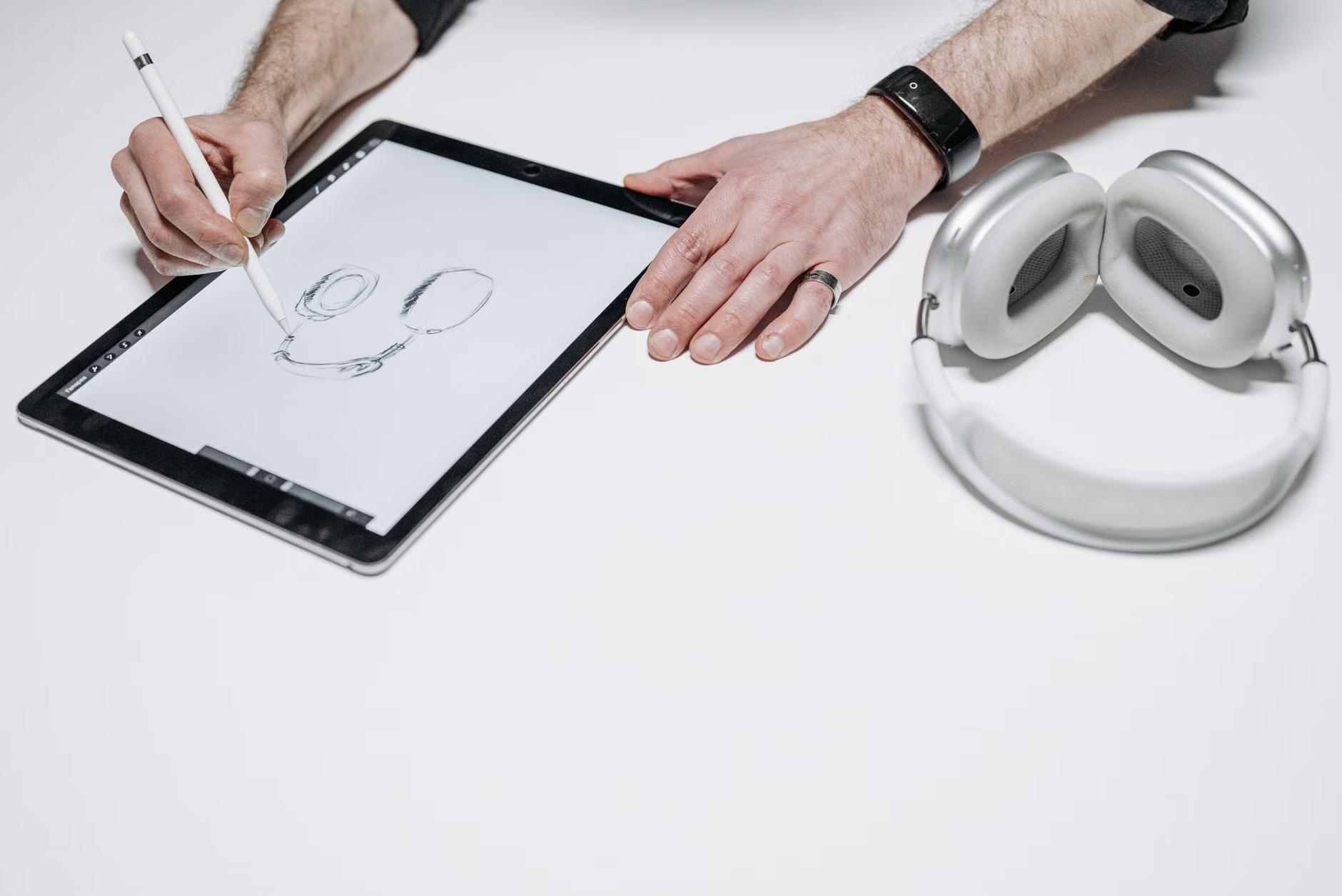
Your ability to enjoy this hobby depends on your physical comfort. Digital painting involves repetitive, small movements. To prevent strain:
- Ergonomic Positioning: Do not hunch over the tablet. Use a stand that elevates your screen to eye level or a slightly angled surface so your neck remains in a neutral position.
- The 20-20-20 Rule: Every 20 minutes, look at something 20 feet away for 20 seconds. This is crucial to prevent digital eye strain, especially when working on a backlit screen.
- Hand Stretches: Periodically rotate your wrists and stretch your fingers. Since you are using a stylus, your grip might unconsciously tighten. Consciously relax your hand every few minutes.
Beyond the Hobby: Why This Matters for Long-term Wellbeing
The pursuit of a “digital hobby” is a signal to your brain that you are still in a state of growth. When we stop learning, our cognitive systems can become stagnant. Digital watercolor is an ideal hobby because it offers a “low-stakes” environment where the cost of failure is zero, but the potential for growth is high. You are not just creating art; you are training your brain to handle new interfaces, adapt to new workflows, and find joy in the process of creation.
Important Note: If you find that the fine motor movements cause persistent pain in your joints, do not “push through.” Consult a physical therapist or your primary care provider. They may be able to suggest specialized stylus grips or ergonomic setups that allow you to continue painting without discomfort. Never ignore persistent pain in the hands or wrists, as it can be a sign of underlying conditions like arthritis or repetitive strain injury that require professional management.

Conclusion: Your Creative Journey Begins Today
Digital watercolor painting is more than a way to fill an afternoon; it is a gateway to sustained cognitive health and creative fulfillment. By breaking down the process into manageable steps—choosing the right gear, understanding the software, and focusing on the process rather than the result—you can cultivate a hobby that is as intellectually stimulating as it is emotionally satisfying. Start small, stay curious, and remember that every stroke you make is a testament to your ongoing commitment to learning and growth.
Frequently Asked Questions (FAQ)
1. Do I need to be “good at drawing” to start digital watercolor painting?
Not at all. Digital painting software often includes tools that help you trace or “trace-over” photos. This allows you to focus on learning how to blend colors and use the brushes without the pressure of having to draw a perfect subject from scratch. The goal is the cognitive exercise of the painting process, not professional illustration.
2. Is there a risk of becoming too dependent on technology?
Technology is a tool, much like a paintbrush or a cookbook. The key is to balance your digital time with other activities. Use digital painting as a structured, intentional hobby, and ensure you maintain your regular physical exercise and social routines. It is a supplement to a balanced life, not a replacement for it.
Most modern tablets and apps offer “Tutorial Mode.” If you feel overwhelmed, look for “beginner tutorials” on YouTube specifically for the software you have chosen. There are thousands of videos created by artists that walk you through every button and setting in plain, simple language. Don’t be afraid to pause the video and practice one step at a time.
Official guidance on the benefits of creative activities for older adults can be found through resources such as the National Institute on Aging (NIA), which highlights how engaging in mentally stimulating activities supports healthy aging.