Digital collage making offers a unique way to combine cherished memories with modern technology, providing a creative outlet that requires no physical cleanup and very little financial investment. For adults in the 60 to 80 age range, this hobby serves as an excellent bridge between traditional scrapbooking and digital literacy, allowing for the preservation of family history in a format that is easily shared with younger generations. By mastering a few basic digital tools, you can transform a cluttered folder of digital photos into a meaningful piece of art that tells a story, celebrates a milestone, or simply captures the beauty of your daily life.
Key Takeaways
- Accessibility and Ease: Digital collage removes the physical barriers of traditional art, such as the need for fine motor precision with scissors or the cost of physical supplies like glue and paper.
- Cognitive Engagement: Learning the “layering” logic of digital art stimulates spatial reasoning and problem-solving skills, contributing to ongoing brain health and digital confidence.
- Infinite Reversibility: Unlike physical collage, every move in the digital space can be undone, which lowers the “fear of failure” and encourages creative experimentation.
What is Digital Collage and Why It Suits the Modern Senior
Digital collage is the process of taking various digital elements—such as photographs, scanned documents, digital textures, and typography—and arranging them on a digital canvas to create a new, unified composition. While physical collage has been a popular artistic medium for over a century, the digital version offers several distinct advantages for older adults who may be looking for a hobby that is gentle on the joints but stimulating for the mind.
In a traditional collage, once you glue a piece of paper down, it is often permanent. If you make a mistake or change your mind about the placement, you risk tearing the original photo or ruining the background. The digital environment removes this risk entirely. Every software program used for digital collage includes an “Undo” button (usually the keyboard shortcut Ctrl+Z or Cmd+Z). This feature alone makes digital collage a “low-stress” hobby. You can try a bold color, move a photo of your grandchild to the center, or add a digital flower, and if you don’t like it, you can revert the change instantly.
Furthermore, digital collage does not require a dedicated craft room. You don’t need to worry about the smell of adhesives, the mess of paper scraps, or the physical strain of leaning over a table for hours. You can work on a laptop at the kitchen table, an iPad in a comfortable armchair, or even a desktop computer in a home office. This flexibility in posture and environment is a significant benefit for those managing mobility or back comfort issues.
Selecting the Right Software for Your Technical Comfort Level
The “best” tool for digital collage depends heavily on your current comfort level with technology and the hardware you already own. There is no need to buy expensive professional software like Adobe Photoshop unless you intend to become a professional graphic designer. For most hobbyists, free or low-cost applications provide more than enough features.
| Software Name | Best For… | Cost | Primary Benefit for Seniors |
|---|---|---|---|
| Canva | Beginners & Web users | Free (Pro version available) | Huge library of pre-made templates and “drag-and-drop” interface. |
| Adobe Express | Quick social sharing | Free version available | Simple background removal tools and modern design elements. |
| Procreate | iPad/Tablet users | One-time low fee | Feels most like “real painting” using a stylus pen. |
| Pixlr | Desktop browsers | Free/Ad-supported | No installation required; works directly in your internet browser. |
For those who are just starting, Canva is often the most recommended starting point. It is a web-based platform, meaning you don’t have to download complex software. It uses very clear, large icons and offers a “Snap-to-Grid” feature that helps you align your photos perfectly without needing a steady hand. If you prefer working on a tablet with a stylus, Procreate offers a more tactile experience that mimics the feeling of moving physical objects around a desk, which many find more intuitive than using a computer mouse.
Gathering and Organizing Your Digital “Scraps”
Before you start the creative process, you need a “kit” of materials. In the digital world, your materials are files. A common mistake for beginners is to start a project without organizing their files first, which leads to frustration when they can’t find the specific photo they want to use.
Step 1: Digitizing Physical Memories. If you have old shoe-boxes of photos, the first step is scanning. You don’t necessarily need a flatbed scanner. Most modern smartphones have “document scanning” features in their Notes or Camera apps that can produce high-quality digital copies. When scanning, ensure you are in a room with bright, natural light to avoid glare on the glossy surface of old photos. Aim for a resolution of at least 300 DPI (dots per inch) if you plan to print your collage later.
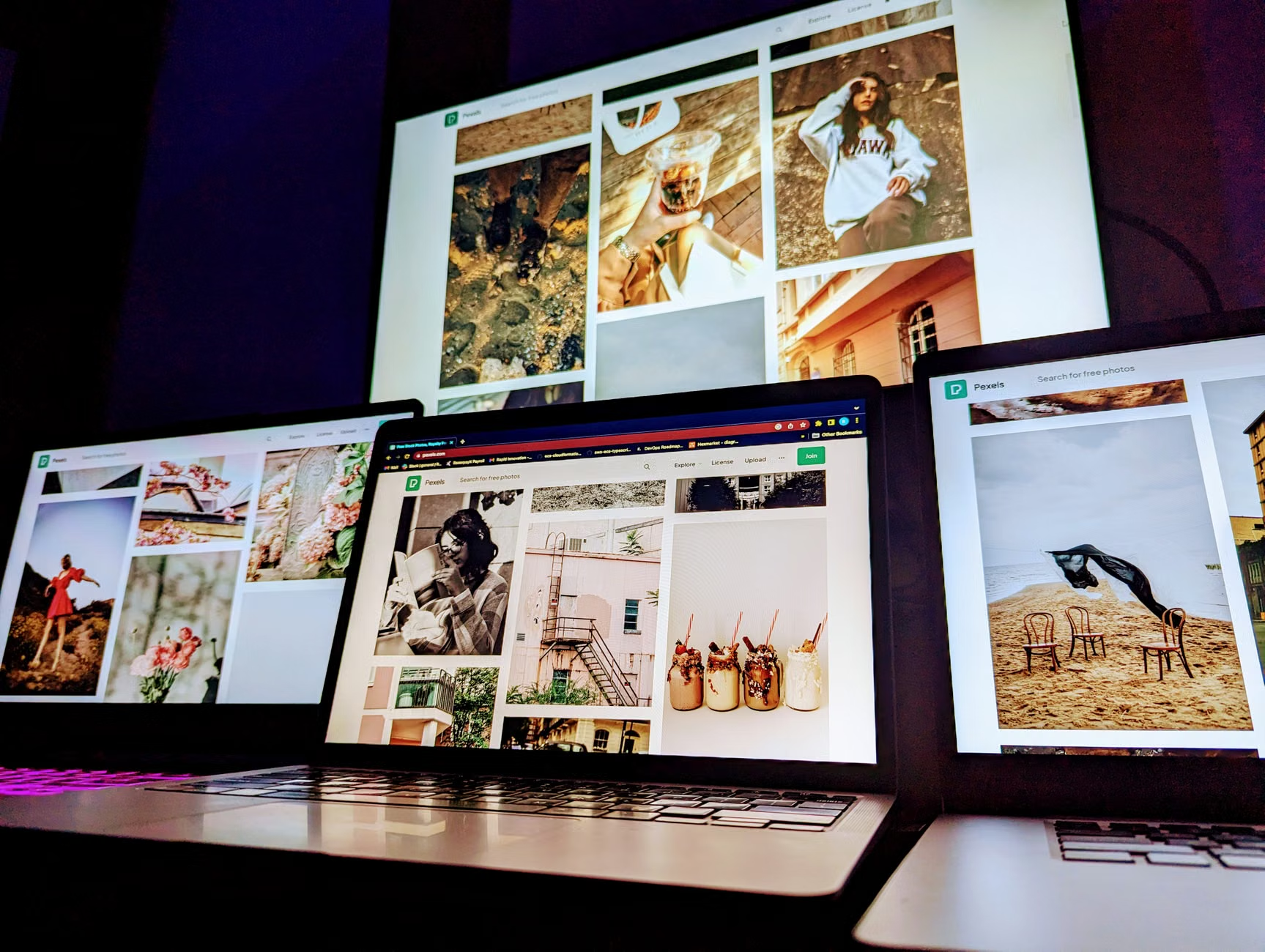
Step 2: Sourcing Public Domain Images. You aren’t limited to your own photos. Many museums and libraries, such as the Smithsonian Institution or the Metropolitan Museum of Art, offer “Open Access” collections. This means you can legally download high-resolution images of vintage maps, botanical illustrations, or classic paintings to use as backgrounds or decorative elements in your collage.
Step 3: Creating a Project Folder. Create a folder on your desktop named “Collage Project – [Date]”. Move all the images you think you might use into this folder. This prevents the “Where did my photo go?” problem that often discourages new digital artists. Having everything in one place allows you to focus on the art rather than the file management.
The Core Techniques: Layering, Resizing, and Blending
Once you have your software and your photos ready, the actual “making” begins. Digital collage relies on three fundamental concepts that, once understood, unlock endless possibilities.
1. The Concept of Layering
Imagine your digital canvas is a stack of clear glass plates. You place a background photo on the bottom plate. Then, you cut out a person from another photo and place them on the plate above it. You can see the background through the clear parts of the top plate. This is exactly how digital layers work. The “Layer Panel” in your software is your most important tool. It allows you to move the person behind a tree or in front of a building just by dragging the layer up or down in the list.
2. Removing Backgrounds (The “Magic” Step)
In the past, removing a background required hours of meticulous “cutting” with a digital lasso tool. Today, most software (including the free version of Adobe Express or specialized sites like Remove.bg) uses artificial intelligence to remove backgrounds with one click. This allows you to take a photo of your cat and “cut it out” so you can place it on a vintage map of Paris. If the AI misses a spot, you can usually use a “mask” or “eraser” tool to clean up the edges. This is much easier on the eyes and hands than using physical X-Acto knives.
3. Adjusting Transparency and Blending
One of the most artistic effects in digital collage is making an image semi-transparent. By lowering the “Opacity” of a layer, you can make a photo of a family home fade into a background of a handwritten letter from the same era. This creates a “dreamlike” or nostalgic quality that is very difficult to achieve with physical paper. It allows the viewer to see multiple layers of history at once.

Meaningful Project Themes for the 60+ Demographic
Starting with a blank canvas can be intimidating. Having a theme helps narrow your choices and gives the project a clear purpose. Here are four themes that resonate particularly well with the life experiences of adults in their 60s, 70s, and 80s.
- The Multi-Generational Heritage Map: Start with a scan of an old map showing where your ancestors came from. Layer in small, “cut-out” portraits of different generations, connecting them with digital lines or decorative ribbons. This becomes a visual family tree that is far more engaging than a standard chart.
- The “Life Chapter” Tribute: Focus on a specific decade or career. If you were a teacher for 30 years, collect photos of your old classrooms, scanned apple drawings from students, and a photo of your first school building. Combine them into a “retirement tribute” that captures the essence of that chapter.
- The Travel Memory Board: Instead of a photo album that stays closed on a shelf, create a single large-format collage of your favorite trip. Include a photo of your partner, a scanned ticket stub, a picture of a local flower, and perhaps a digital “stamp” of the country. This can be printed and framed as a daily reminder of your adventures.
- The Vision Board for the Next Decade: Collage isn’t just for the past. Use it to visualize what you want to do next. Include photos of gardens you want to plant, books you want to read, or places you want to visit. This keeps the creative process forward-looking and positive.
Overcoming Physical and Technical Hurdles
While digital collage is accessible, it isn’t without its challenges. However, these challenges are easily managed with a few practical adjustments.
Vision Adjustments: If you find the icons in software like Canva too small, use the “Zoom” feature of your web browser (Ctrl + ‘+’ on Windows or Cmd + ‘+’ on Mac). Additionally, working on a larger monitor (24 inches or larger) can significantly reduce eye strain compared to a small laptop screen. Ensure your screen brightness is comfortable and consider using “Blue Light Filter” glasses if you plan to work in the evenings.
Dexterity and Control: Using a standard computer mouse can sometimes be difficult for those with arthritis or tremors. A trackball mouse or an ergonomic vertical mouse allows you to move the cursor using your thumb or a more natural hand position, reducing wrist strain. Alternatively, using a tablet with a stylus (like an Apple Pencil or a generic capacitive stylus) allows you to use your whole arm for movement, which is often more comfortable than the fine-motor “clicking” required by a mouse.
The “Save” Anxiety: Many older adults worry about losing their work if the computer crashes. Modern web-based tools like Canva and Adobe Express save your work automatically every few seconds. You don’t even have to click a “Save” button. As long as you are connected to the internet, your progress is safe. For desktop software, get into the habit of “Saving a Version” (e.g., Collage_V1, Collage_V2) so you can always go back to an earlier stage if you decide you don’t like the direction the project is taking.
Bringing Your Art into the Physical World
The “digital” part of the hobby doesn’t mean the art has to stay on a screen. One of the most rewarding parts of digital collage is sharing the final result. Digital files can be sent instantly to family members via email or messaging apps like WhatsApp, providing an immediate way to connect with grandchildren.
If you want a physical copy, you have several options based on your budget and desired quality:
- Home Printing: Good for small tests or greeting cards. Use high-quality matte photo paper rather than standard office paper for better color depth.
- Online Print Services: Companies like Shutterfly, Vistaprint, or local pharmacy photo centers allow you to upload your file and have it printed on canvas, high-quality poster paper, or even as a custom jigsaw puzzle. A custom puzzle made from a family collage is an excellent gift for younger family members.
- Digital Photo Frames: If you make many collages, a digital photo frame allows you to display a rotating slideshow of your art in your living room without needing to print anything.

The Hidden Benefits: Why This Hobby Matters
Beyond the joy of creating something beautiful, digital collage making offers significant cognitive and emotional benefits. Engaging with new technology in a creative way helps maintain “neuroplasticity”—the brain’s ability to form new neural connections. It requires you to learn new vocabulary (layers, pixels, export), practice spatial arrangement, and make aesthetic decisions.
Furthermore, the process of looking through old photos and organizing them into a collage acts as a form of “Reminiscence Therapy.” This practice of reflecting on one’s life through visual cues has been shown to improve mood, reduce feelings of isolation, and strengthen one’s sense of identity. It turns a “chore” (organizing old photos) into a creative mission. It shifts the narrative from “looking at the past” to “building something for the future.”
Conclusion: Your Next Steps
The most important thing to remember about digital collage is that there are no rules. You cannot “break” the software, and you cannot “ruin” your photos because you are working with digital copies, not the originals. Your first few attempts might feel clunky, but within just a few hours of experimentation, the logic of the software will become second nature.
Your immediate next action: Choose three photos that make you smile. They don’t have to be perfect. Go to Canva.com, create a free account, and simply try to place those three photos on one page. Don’t worry about the background or the decorations yet. Just get comfortable moving them around the screen. That small step is the beginning of a rewarding new creative journey.
Frequently Asked Questions
Q1: Do I need a high-end computer to make digital collages?
No. Most modern digital collage tools like Canva or Adobe Express run in your web browser. This means the “heavy lifting” is done on their servers, not your computer. As long as your computer or tablet can browse the internet smoothly and watch a video without lagging, it is powerful enough for digital collage.
Q2: Is my data safe when I upload my personal photos to these websites?
Reputable sites like Canva and Adobe have strict privacy policies. Your photos are stored in your private account and are not visible to the public unless you specifically choose to “Share” or “Publish” them. For extra security, always use a strong, unique password for your accounts and avoid using public computers (like those in a library) for projects involving personal family photos.
Q3: How do I know if an image I found on Google is okay to use?
Not every image on the internet is free to use. To stay safe, use Google’s “Usage Rights” filter (select ‘Creative Commons licenses’) or use dedicated sites for free images like Pixabay or Unsplash. However, if you are just making a collage for your own home or to share privately with family, you have much more flexibility under “Fair Use” principles than if you were planning to sell your art.
Source References:
– Smithsonian Open Access: https://www.si.edu/openaccess
– Canva Design School (Tutorials for Beginners): https://www.canva.com/designschool/tutorials/
– The Metropolitan Museum of Art (Open Access Collection): https://www.metmuseum.org/art/collection