- Offline maps eliminate dependence on cellular data or unstable Wi-Fi in remote park areas, ensuring you always have a reliable point of reference.
- Prioritize apps that offer high-contrast settings, large font options, and simple “point-to-point” navigation to reduce cognitive load while outdoors.
- Always combine digital tools with physical preparation, such as checking battery life, bringing a portable power bank, and informing someone of your intended route.
For many active adults, the appeal of a national park, a botanical garden, or a sprawling urban green space lies in the opportunity to disconnect from the noise of daily life. However, “disconnecting” should never mean losing your way. As mobile connectivity in vast natural landscapes is often unreliable, relying on standard online mapping services can lead to frustration or safety concerns when a signal drops unexpectedly.
Using digital offline maps is a strategic choice for senior travelers who value autonomy and safety. By pre-downloading map data, you ensure that your device remains a functional navigation tool regardless of your cellular coverage. This guide explores how to select, prepare, and effectively use these digital tools to enhance your independence during outdoor excursions, focusing on usability, accessibility, and peace of mind.
Understanding Offline Maps: What They Are and How They Work
An offline map is essentially a digital snapshot of a geographic area stored directly on your device’s internal memory. Unlike standard maps that download data in real-time as you move, offline maps are self-contained. Once downloaded, your smartphone uses its built-in GPS (Global Positioning System) chip to track your movement across the cached map data, providing location accuracy without the need for an internet connection.
Why This Matters for Your Safety
The primary advantage for the senior explorer is reliability. In many protected park areas, cell towers are sparse to preserve the natural aesthetic. If you rely on an online map, you may find yourself staring at a blank screen or a spinning “loading” icon at a critical trail junction. Offline maps provide:
- Continuous Visibility: You can see your current location, the path ahead, and points of interest at all times.
- Reduced Battery Drain: Your phone does not constantly search for a signal, which is one of the most significant causes of rapid battery depletion in remote areas.
- Reduced Anxiety: Knowing you have a digital backup allows you to focus on the scenery rather than worrying about navigation.
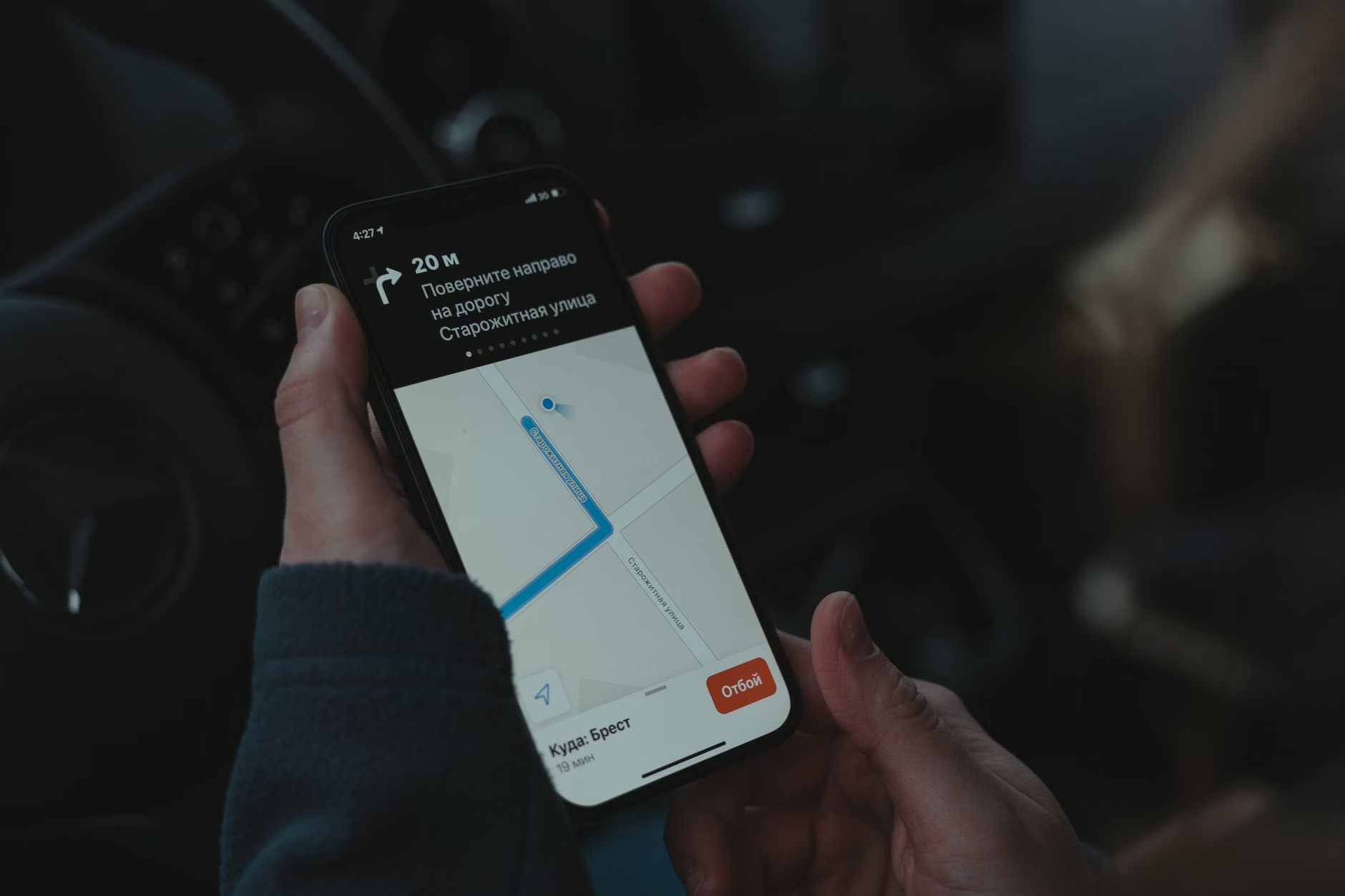
Not all navigation apps are created equal. When choosing an app for park exploration, prioritize accessibility and simplicity over complex features designed for professional mountaineers.
Key Features to Look For
| Feature | Why it Matters for Seniors |
|---|---|
| High-Contrast UI | Easier to read under direct sunlight or for those with reduced vision. |
| Large Text/Icons | Reduces the need to squint or zoom in repeatedly. |
| Simple Downloading | Allows for quick, one-tap downloads before leaving home. |
| Customizable Markers | Lets you pin your car, rest stops, or accessible toilets. |
Recommended Apps: Apps like Google Maps (which has a robust “Offline Maps” feature) are often the most accessible because you may already be familiar with the interface. Dedicated hiking apps like AllTrails offer more detailed topographic data, which is beneficial for parks with significant elevation changes.
Step-by-Step: Preparing Your Device Before You Leave
The success of offline navigation depends on preparation. Follow this checklist to ensure your device is ready for the trail:
- Download at Home: Connect to your home Wi-Fi and download the map for your destination. Downloading over cellular data can be slow and expensive.
- Check the Storage: Ensure your phone has enough space. A map of a large park can take up several hundred megabytes.
- Set Markers: Before you leave, drop a “pin” at your parking spot. It sounds simple, but in a large, unfamiliar park, this is the most useful feature for ensuring a stress-free return to your vehicle.
- Test the GPS: Once downloaded, turn on “Airplane Mode” and open the map. If your blue dot appears on the map, your system is working correctly.

Managing Stamina and Mobility with Digital Tools
Navigation is not just about finding the way; it is about managing your physical energy. Digital maps can help you make informed decisions about your route based on your current stamina.
Using Topographic Data for Pacing
If your chosen app provides topographic lines (the lines showing elevation), use them to judge the difficulty of a path. Lines that are close together indicate a steep incline. If you are feeling fatigued, choose paths where the lines are spaced further apart, as these represent flatter, more accessible terrain.
The Importance of “Rest-Stop” Mapping
Many official park websites offer PDF maps that indicate the location of benches, toilets, and water stations. If your digital map app allows for “Custom Layers” or “My Maps,” try to import these locations. Knowing exactly how far you are from the next bench allows you to pace yourself and plan for necessary rest intervals, which is vital for maintaining comfort and preventing overexertion.
Common Mistakes and How to Avoid Them
Even with the best technology, mistakes can happen. Here is how to handle the most common pitfalls:
- The Battery Myth: Many believe that having a full charge is enough. In cold weather, batteries drain significantly faster. Always carry a fully charged power bank and a cable that fits your device.
- Assuming Accuracy is Absolute: GPS signals can be affected by deep canyons or heavy tree cover. If the “blue dot” seems to jump around, stop moving, wait for the signal to stabilize, and cross-reference with visible landmarks like signs or trail markers.
- Ignoring Physical Backups: Never rely 100% on a battery-powered device. Always pick up a physical paper map at the park visitor center. Use the digital app as your primary guide, but keep the paper map as your fail-safe.

Practical Decision-Making: Choosing the Right Route
When you arrive at the park, look at your offline map to assess the day’s plan. A common mistake is to attempt a “loop” trail that is longer than your comfortable walking distance. Instead, look for “out-and-back” trails. These are safer because you can turn around at any point, knowing exactly how far you have to go to get back to the start. Use the measurement tools in your app to calculate distances between key points before you start walking.
Conclusion: Empowerment Through Preparation
Using digital offline maps is a simple way to extend your range and comfort as an active senior. By taking the time to download your maps, set your markers, and pack a power bank, you are not just using technology—you are ensuring your independence. Technology should serve your desire to explore, not hinder it. With a reliable map in your pocket, you can walk with confidence, knowing that the path ahead is clear and your return journey is secure.
Frequently Asked Questions
1. Do I need a special GPS device, or is my smartphone enough?
For most park explorations, a modern smartphone is more than sufficient. Most smartphones contain a high-quality GPS chip that works independently of cellular data. As long as you have downloaded the map data beforehand, your phone is as accurate as a dedicated handheld GPS unit.
2. What should I do if my phone battery dies while I am on the trail?
This is why a physical paper map is essential. If your battery dies, rely on the physical map and the park’s signage. This is also why we recommend carrying a portable power bank. If you find your battery draining quickly, put your phone in “Airplane Mode” and only turn it on when you need to check your location.
3. Can I use these maps if I have poor eyesight?
Yes. Most smartphones have accessibility settings that allow you to increase the font size and icon size across the entire system, including your map apps. In Google Maps, you can also use the “High Contrast” mode in the settings to make streets and paths stand out more clearly against the background.
Official Resources for Further Reading:
Google Maps: Download areas and navigate offline
National Park Service: Maps and Navigation Tips