- Digital sketching stimulates neuroplasticity by requiring the brain to coordinate fine motor skills with visual-spatial reasoning.
- Starting with user-friendly hardware like tablets and intuitive software removes the physical mess of traditional art while offering “undo” features that lower the barrier to entry.
- Consistency is more important than natural talent; practicing for just 15-20 minutes daily provides significant cognitive stimulation and stress relief.
Learning to sketch digitally is an accessible, low-pressure way to challenge the brain, improve hand-eye coordination, and foster lifelong learning. For adults aged 60 to 80, the shift from traditional paper to a screen offers unique advantages, including the ability to zoom in on details, correct mistakes instantly, and explore infinite color palettes without the need for extensive storage space or cleaning supplies.
Understanding the Cognitive “Workout” of Digital Art
Engaging in artistic activities, particularly those involving new technologies, is often described by neuroscientists as a “cognitive reserve” builder. When you learn to use a digital stylus and a tablet, you are not just drawing; you are training your brain to bridge the gap between abstract thought and physical execution.
Neuroplasticity and Learning: As we age, the brain’s ability to form new neural connections—known as neuroplasticity—remains robust, provided it is stimulated by novel tasks. Digital sketching requires you to navigate software menus, understand layers, and manipulate tools. This forces the brain to process spatial relationships and technical logic simultaneously, which is significantly more demanding than passive activities like watching television.
Visual-Spatial Reasoning: Sketching encourages you to break down complex objects into basic shapes—circles, squares, and triangles. This process sharpens visual-spatial reasoning, which helps maintain the ability to navigate physical environments, judge distances, and organize items effectively in daily life.
Fine Motor Skills and Hand-Eye Coordination
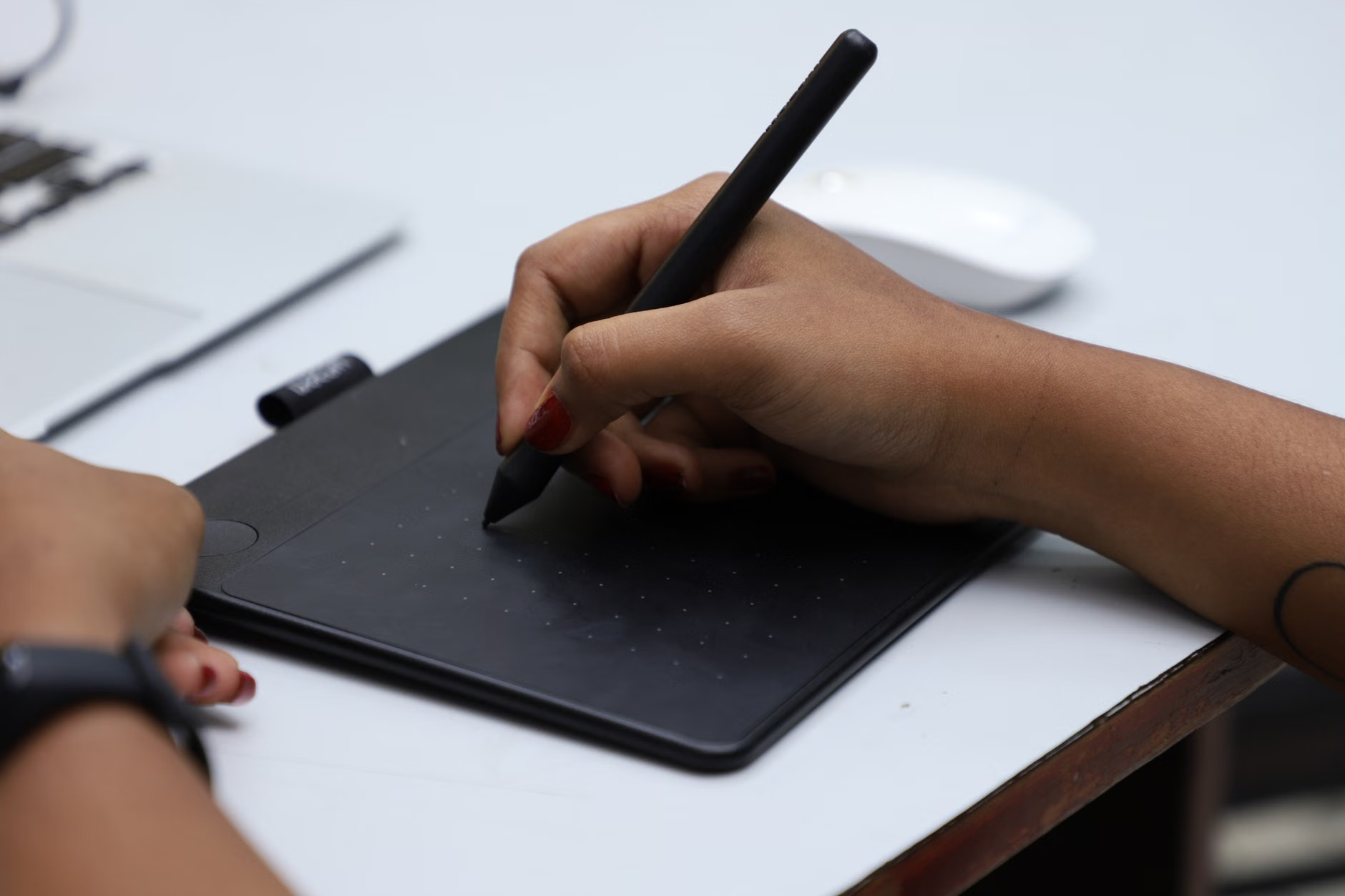
Using a digital stylus requires a level of precision that helps maintain dexterity in the fingers and hands. Unlike a standard mouse, a stylus mimics the grip of a pen, which is a movement pattern most adults have practiced throughout their lives. Refinement of these movements can help preserve fine motor control, which is essential for tasks like writing, buttoning clothes, or handling small household objects.
Hardware and Software: Choosing the Right Tools
One of the most common barriers to entry for seniors is the belief that digital art requires expensive, high-end equipment. In reality, you can start with a basic tablet and a stylus that fits comfortably in your hand. The key is prioritizing ease of use over raw processing power.
Recommended Entry-Level Setup
| Component | What to look for | Why it matters |
|---|---|---|
| Tablet | 10-inch screen or larger | Provides a larger canvas, reducing eye strain and allowing for more precise finger or stylus movements. |
| Stylus | Ergonomic grip | A thicker, rubberized grip reduces hand fatigue compared to thin, hard-plastic alternatives. |
| Software | Simple interface (e.g., Sketchbook, Tayasui Sketches) | Avoids “feature bloat” that can be overwhelming for beginners. |
For those with limited joint mobility or arthritis, an ergonomic, weighted stylus is often a better investment than the tablet itself. These styli provide more stability and require less grip strength. When choosing software, look for apps that offer a “minimalist mode” where tools are hidden until you need them, keeping the screen clean and focused on your work.
A Step-by-Step Approach to Your First Session
The goal of your first session is not to create a masterpiece, but to familiarize yourself with the sensation of drawing on glass. Here is a recommended routine for your first week of practice.
Days 1-3: The “Calibration” Phase
Spend 15 minutes each day simply making marks. Do not try to draw a picture. Instead, draw straight lines, wavy lines, and circles. Adjust your brush size and color. This helps you understand how the screen reacts to your pressure and speed. If you find the screen too slippery, there are “paper-like” screen protectors available that provide a slight texture, creating a sensation closer to pencil on paper.
Days 4-7: Tracing and Experimentation
Import a simple photograph of a fruit or a flower into your app. Lower the opacity of the photo so it appears faint, then create a new layer on top and trace the outlines. This provides a “safety net” that allows you to focus on line quality and stylus pressure without the pressure of drawing from scratch.
Common Mistake: Many beginners try to learn every feature of their software before they draw their first line. Ignore the advanced settings like “blending modes,” “masks,” or “custom brushes.” Stick to the pencil and eraser tools for the first month. Proficiency in the basics is far more valuable than knowing every menu option.
Managing Expectations and Physical Comfort
Digital sketching is a hobby, not a race. It is vital to manage your physical comfort to ensure the activity remains enjoyable rather than a chore.
Ergonomic Positioning: Avoid looking down at your lap while you draw. Place your tablet on a stand at eye level or use a tilted desk surface. This prevents “tech neck”—the strain placed on the cervical spine by prolonged downward looking. If you find yourself holding your breath or tensing your shoulders, stop for five minutes. Set a timer to remind yourself to stretch your wrists and look at a distant object every 20 minutes to reduce eye fatigue.
The “Undo” Advantage: One of the greatest mental benefits of digital art is the “Undo” button. Traditional art can be frustrating when a mistake ruins a piece of paper. Digital art removes this “fear of failure.” If you make a mistake, you can simply tap the undo button and try again. This creates a low-stakes environment that encourages experimentation and risk-taking, which is excellent for maintaining a curious and resilient mindset.
Social and Psychological Benefits
Sketching can be a solitary, meditative practice, but it also offers opportunities for social connection. Many communities offer digital art clubs or online forums where members share their work. Participating in these groups can provide a sense of belonging and purpose, which are critical factors in the mental well-being of older adults.
Furthermore, sharing your progress with family members—perhaps by sending a digital sketch to a grandchild—can bridge the generational gap. It provides a common language and an activity you can discuss, moving beyond the standard “how are you?” conversations.
Insights for Long-term Sustainability
The biggest challenge to any new hobby is the “novelty cliff”—the point where the initial excitement fades. To keep your practice sustainable, focus on “project-based” goals. Instead of just “practicing,” try to complete a small series, such as “Drawing one item from my kitchen every day for a week.” This gives you a clear start and end point, providing a sense of accomplishment.
Also, consider the lighting in your environment. Digital screens emit blue light, which can affect sleep if done too close to bedtime. If you prefer to sketch in the evening, use your device’s “Night Shift” or “Blue Light Filter” settings to warm the screen color, making it easier on the eyes.
Frequently Asked Questions (FAQ)
1. Is digital sketching difficult for someone who has never used a computer?
Not necessarily. Most modern drawing apps are designed to be intuitive. If you can use a smartphone, you can learn to use a drawing app. Many seniors find that the tactile nature of a stylus makes the process feel more natural than using a keyboard or mouse.
2. Do I need to be a talented artist to start this?
Absolutely not. The cognitive benefits come from the *process* of drawing, not the quality of the result. Whether you are drawing stick figures or detailed landscapes, the brain is receiving the same stimulation. It is about the act of creating, not the final product.
3. What if I have arthritis or tremors in my hands?
Digital software is incredibly forgiving. Most apps have a “stabilization” or “smoothing” feature that automatically cleans up shaky lines, making your drawings look much smoother than they would on paper. Additionally, using a stylus with a thicker, weighted grip can help manage tremors.
For further reading on maintaining brain health through creative activities, you may consult resources from organizations like the Alzheimer’s Society, which emphasizes how creative stimulation supports cognitive wellbeing.
Note: If you experience persistent wrist or hand pain, consult with a physical therapist or your primary care physician to ensure your setup is optimized for your specific needs.